Manage your employer/candidate registration forms as well as a number of other essential forms, including job posting form, create a resume form, contact us form, etc.
Follow JobMount blog for job board software feature upgrades and new releases.
This website stores cookies on your computer. These cookies are used to collect information about how you interact with our website and allow us to remember you. We use this information in order to improve and customize your browsing experience and for analytics and metrics about our visitors both on this website and other media.I agree and accept
Download our Q3 2023 Job Market Pulse Report
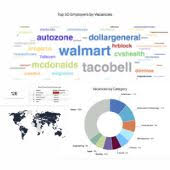
Download the first Job Market Pulse Quarterly U.S. Jobs Report for 2023. It focuses on bringing you quarterly job market trends and insights from our database of more than 120,000 companies and 6M U.S. job postings.