Contents1. Configuration in admin |
JobMount’s job board offers a convenient mini-blog feature, allowing you to effortlessly create your own simplified articles and publications directly within the job board admin panel.
Configuration in admin
1) Navigate to
Content: Generic: Publications

Note: default URL for your articles/publications page is yourjobboard.com/publications
If you want to change it, please contact your JobMount job board account manager
2) To add an article/publication, you first need to create a relevant section for it. Simply click on the ADD button at the top right-hand side:

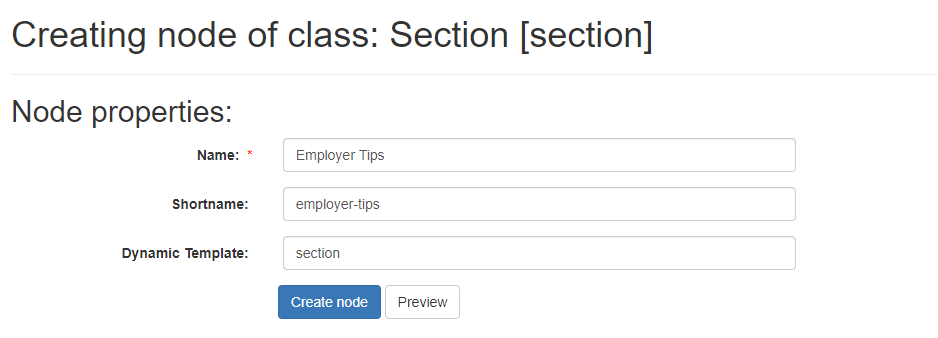
2.1. When creating a new section, provide a name and a shortname (use a dash symbol “-” to connect separate words for the shortname, as spaces are not allowed – this would be the actual URL of the section). Ensure that the Dynamic Template field includes the word section. Refer to the example below for clarification.
3) Now, you can begin posting actual articles, news, blog posts, etc. Return to your default Publications node, click on any of your created sections, and then click ADD next to the Publication field type on the upper right-hand side:

3.1. When supplying node properties for your publication, include a name, shortname (use dash symbol “-” to connect separate words, because the shortname is the URL of the publication, spaces are not allowed), and ensure that the Dynamic Template contains the word publication.

3.2. Provide live data for your publication, utilizing default fields such as: Title, Author, Featured checkbox, Short description (for featured publications), Description, and Image.
The final publication page comprises the following elements:

- Title
- Author
- Image
- Full description (publication text)
- Block with other publications within the current section (up to 10 items in random order are displayed)
Important Note: The short description field is exclusively for featured publications. If you do not plan to feature a specific publication, you may leave the short description field blank.
You can feature as many publications as you wish (recommended not exceeding 3). To feature a publication, set the Featured checkbox to YES and add a short description. The featured article will be prominently highlighted at the top with an image, as shown in the example below:
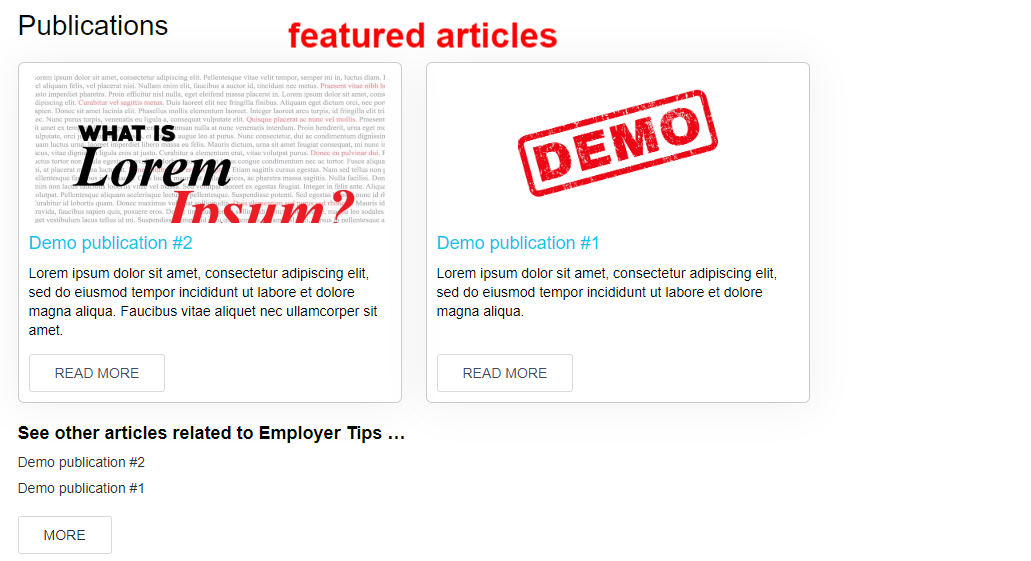
Example of a featured publication in admin:
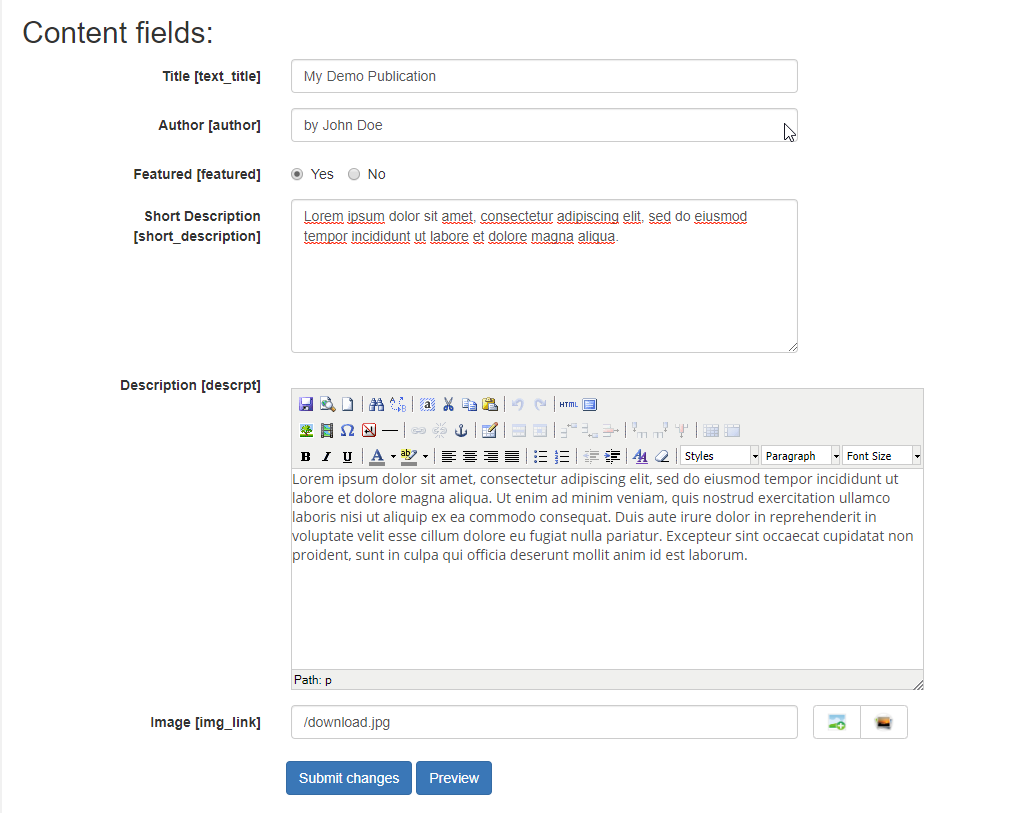
4) Click SUBMIT CHANGES once you’re done with the publication to save it.
Related information and important notes
- After creating a new section, please note that the PUBLICATION field type might not be readily available. In such instances, kindly reach out to your dedicated job board account manager. They will facilitate the approval of all newly created sections, allowing you to seamlessly begin adding publications to them.
- Additionally, if you wish to include a post date for each publication, please be aware that this field is initially hidden. To enable it, please get in touch with your JobMount job board account manager, and they will assist you in activating this option.

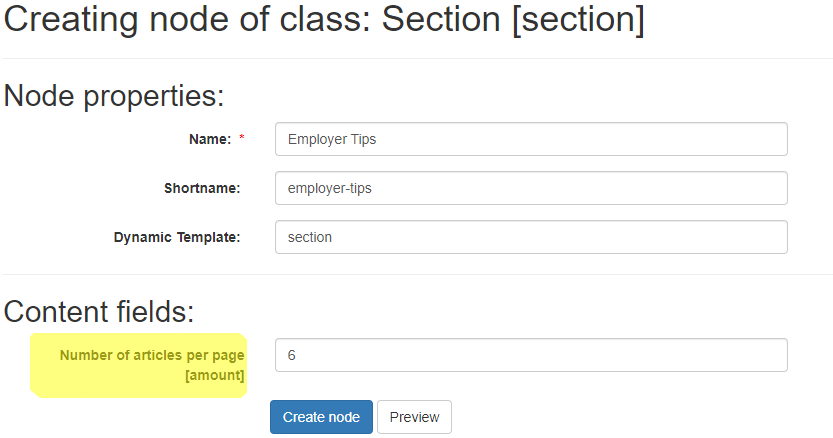
- When creating a new section, it’s also possible to customize the number of publications displayed per page within that section. Consideration should be given to the potential impact on site loading times and user experience if numerous publications with images are condensed onto a single page, leading to an extended scroll to the bottom. If you anticipate having a substantial number of publications in each section, it might be prudent to limit the number of publications per page for a more optimal browsing experience.
Live example with 3 publications on a page:
In order to set up the number of publications displayed per page in a section, do the following:
– when you create a new section, type in a digit in the field called “number of articles per page”