
Contents |
Registering merchant account
1. Visit Stripe website: create and activate your account:
Stripe: Use an app: Activate account


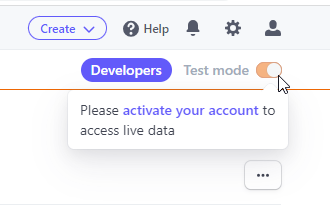
If you’ve recently created an account and didn’t complete the activation process, you can also locate the Activate Your Account link in the top right corner by hovering over the “TEST MODE” toggle.
2. To add your Stripe account on the job board you`ll need 3 keys to your Stripe account.
2.1 Publishable key.
Stripe: Developers: API keys
2.2. Secret key.
Stripe: Developers: API keys (below the Publishable key)
To get the Secret key click on the Reveal key token button.
Copy both keys as you will need them to set up Stripe in JobMount job board admin.
IMPORTANT NOTE: Be sure to copy and save the SECRET KEY as soon as it's revealed to you. Once you leave the page, Stripe won't allow you to retrieve the entire SECRET KEY again. If you didn't save it, you'd have to generate new keys.

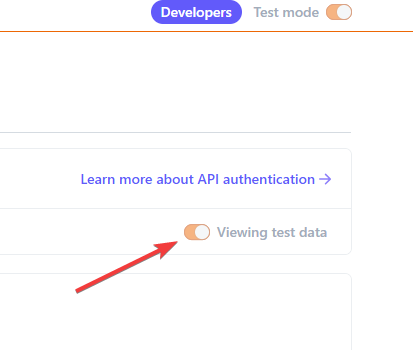
NOTE: you may need to toggle to live data first in order to get live API keys. Test API keys won’t work for actual payment processing. For this, your account must be activated.
2.3. Signing a secret key.
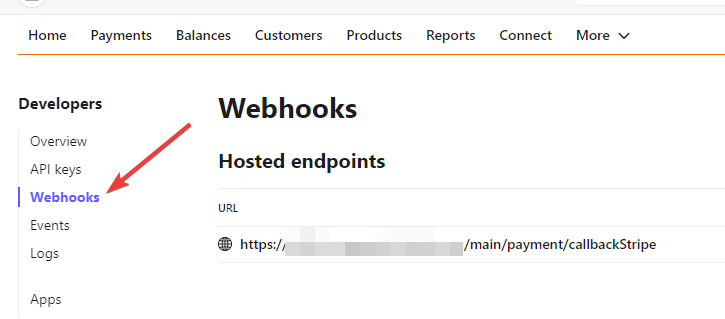
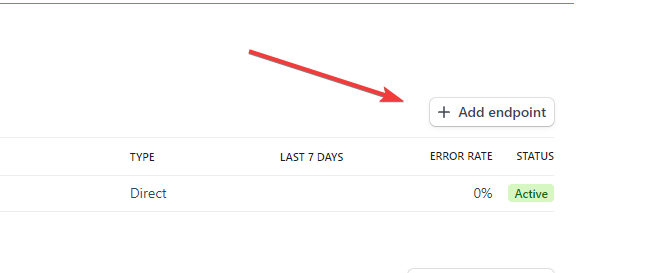
Stripe: Developers: Webhooks and click on the "Add endpoint" button on the right
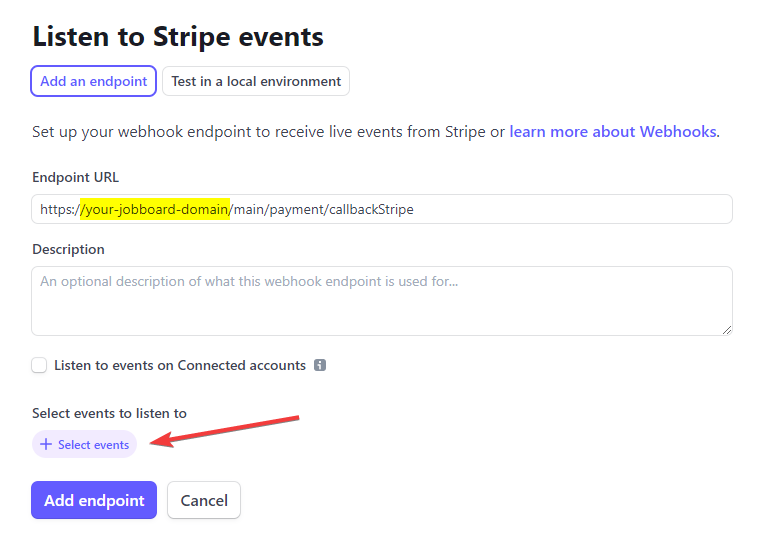
2.3.2. Fill in the field Endpoint URL with the URL https://YOUR DOMAIN NAME/main/payment/callbackStripe (see screenshot below)
Please mind whether your job board URL starts with www. or not. It's important for the Webhook to work properly.
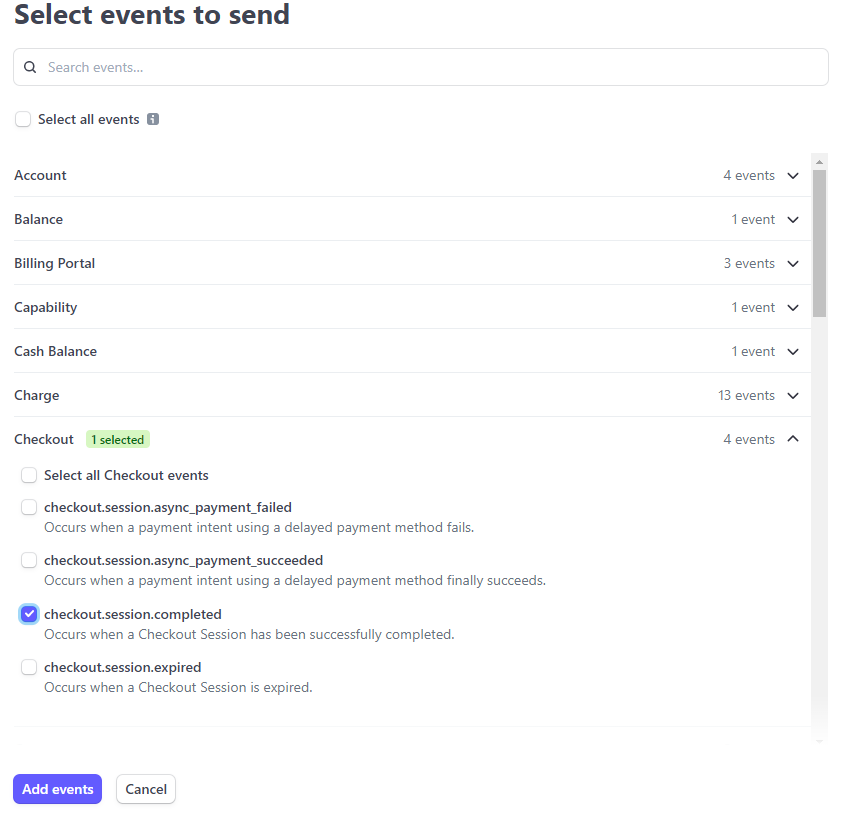
2.3.3. Then in the Events to send dropdown select Checkout -> checkout.session.completed and press the Add events button:
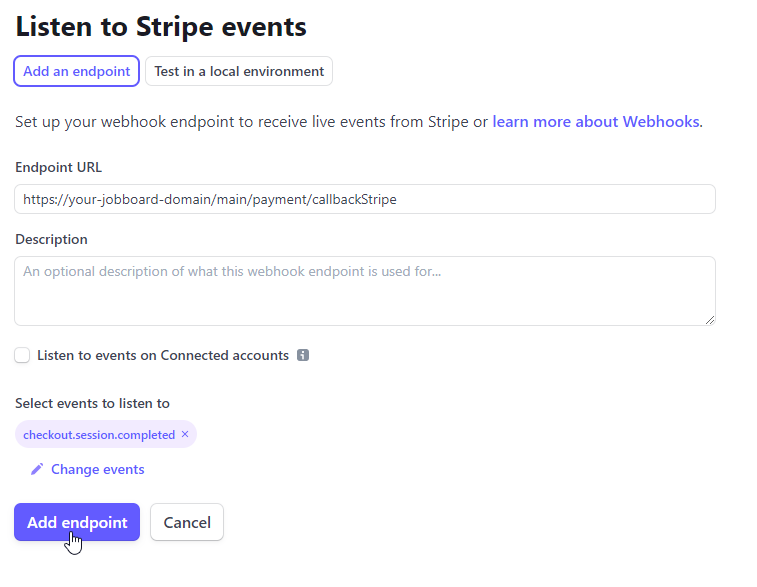
Click ADD ENDPOINT to save the webhook created.
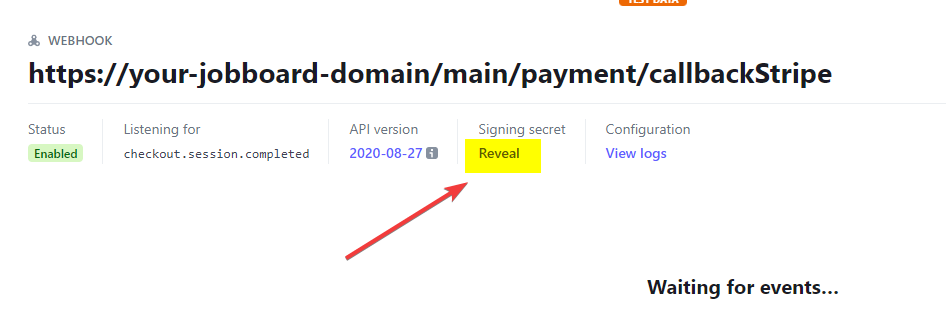
2.3.4. In order to see and copy the Signing secret key click on the REVEAL button on the webhook you just created for your job board.
Admin configuration
1. Navigate the Admin section of your job board application:
Settings: Payments: Payment systems integration

2. System will offer payment gateways currently integrated:
Edit: Payment systems management.
3. Open Stripe properties: click on logo or  : Stripe properties screen will be offered:

3.2. On the Edit Payment System scroll down and edit the following parameters:
stripe_api_key – insert your Publishable key (clause 2.1)
sk_key – insert your Secret key (clause 2.2)
signing_secret_key – insert your Signing secret key (clause 2.3)
locale – insert your language. Supported Languages for Stripe Checkout
