
Contents1. Apply for a developer account |
Apply for a developer account
1. If you don’t have any apps, log in at https://developer.twitter.com/ with your Twitter username and password. Go to Apply for a developer account.
If you already have a Twitter developer account, proceed to create an app

2. Select Build customized solutions in-house for auto-post to Twitter.

3. Verify your Twitter username and provide all details about your organization. Make sure you specify how you are planning to use the Twitter API and accept the Developer Agreement to confirm your email account.

4. That’s it! Your application is now under review and your will be notified about the results by Twitter.
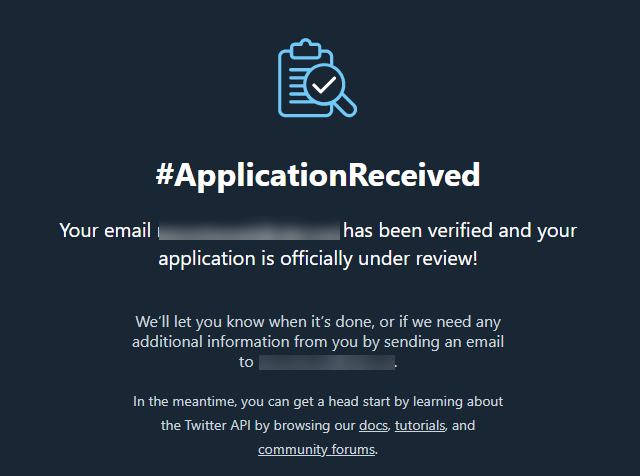
Create an app
As of July 2018, you must apply for a Twitter developer account and be approved before you may create new apps. Once approved, you will be able to create new apps at developer.twitter.com
1. Click on the Create an app button at top right.
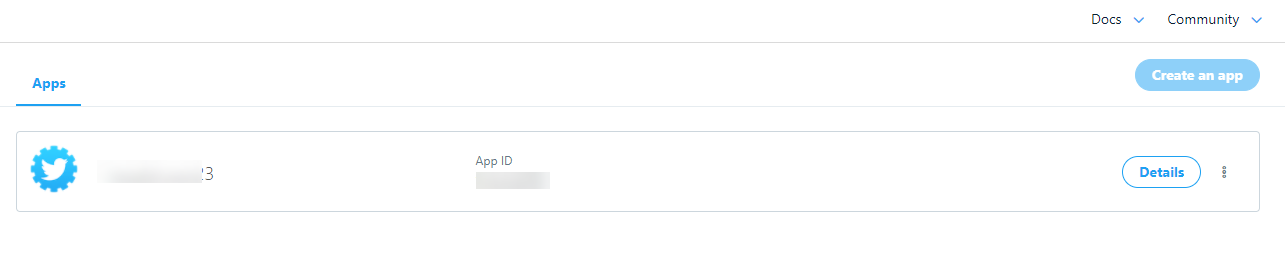
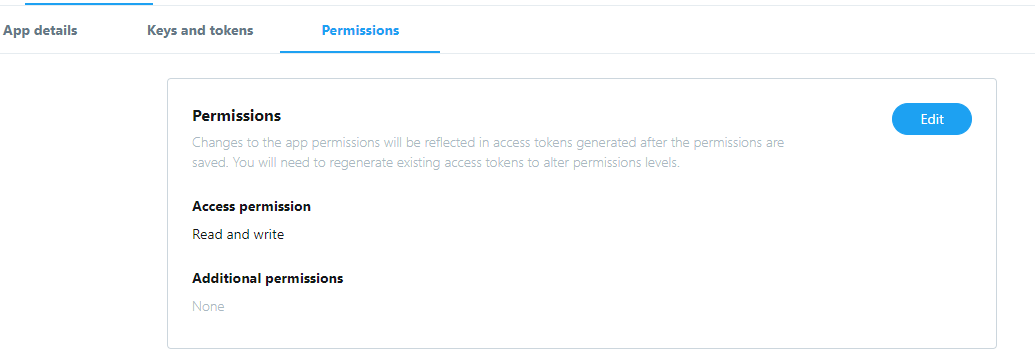
2. Fill in all the app details required.
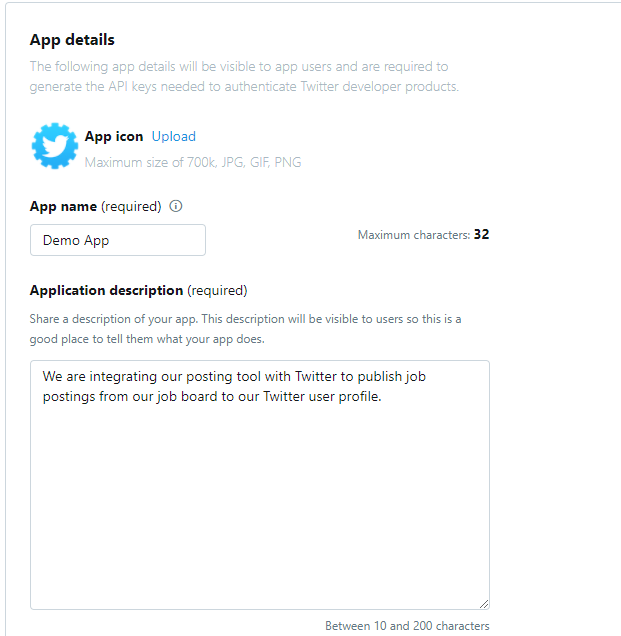
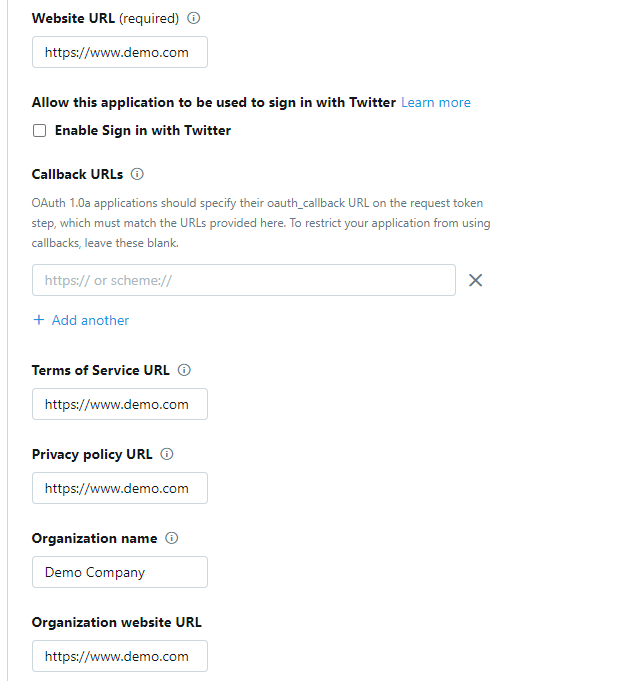
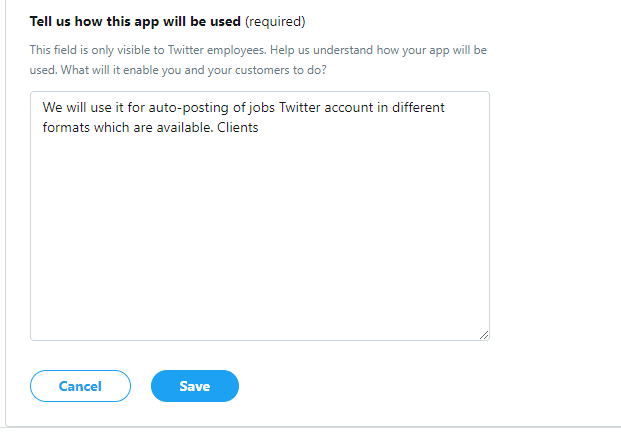
Important note! Leave the Enable Sign in with Twitter checkbox unticked and Callback URLs empty
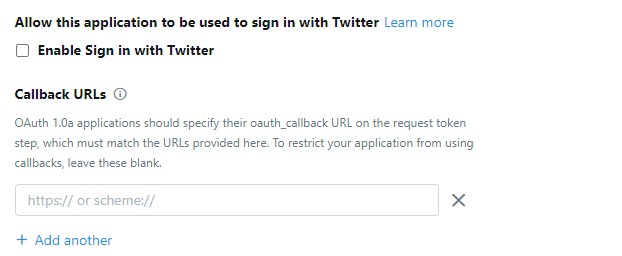
3. Go to Permissions tab. Access permission must be “Read and Write”
4. Go to Keys and tokens tab to find your Consumer API Keys.
Click Create to get your API key and API secret key. Save them for later.

Create your account in job board admin and authorize your app
1. In job board admin, navigate to
Tools: Post to Twitter
Click ADD ACCOUNT and type in your twitter username, key and secret key from the previous step, click SAVE.
Note: you will also see a field called PIN. Leave it empty for now, more to follow below.
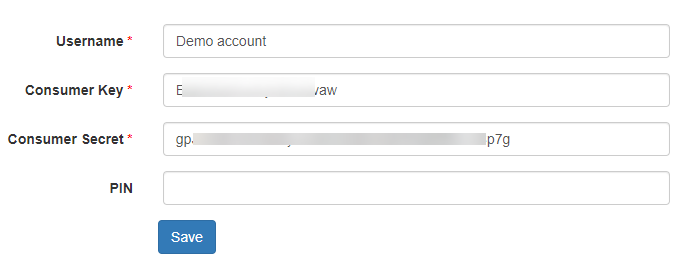
2. Now click on the “key” icon next to your newly created account to authorize the app in Twitter.

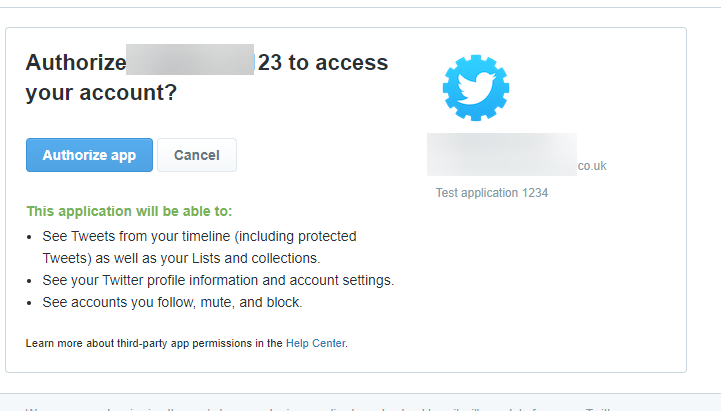
You will see the following Twitter authorization screen, click on Authorize app.
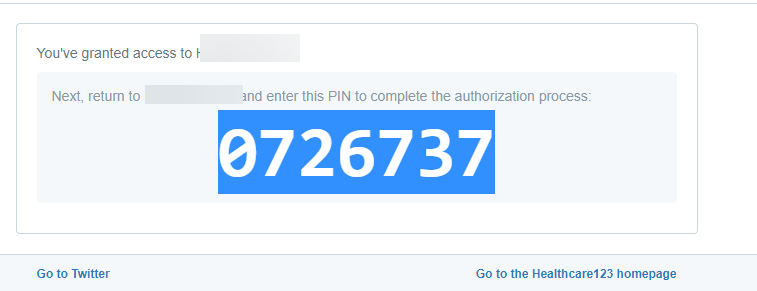
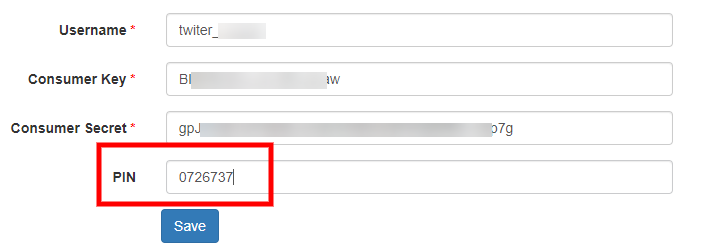
3. The next page will generate a PIN for you. Copy it and return to the Post to Twitter section in job board admin and click on your created account name (where you’ve entered username and API keys in step #1), insert the PIN into the relevant field and click SAVE.
4. Your app is now authorized and can be used to auto-post jobs from your job board to your Twitter account.
Manage Twitter post feed templates
1. Login to job board software admin.
2. Navigate in admin to:
Tools: Post to Twitter
3. System will open the list of Twitter accounts and post templates configured (if any).
Post feed templates:
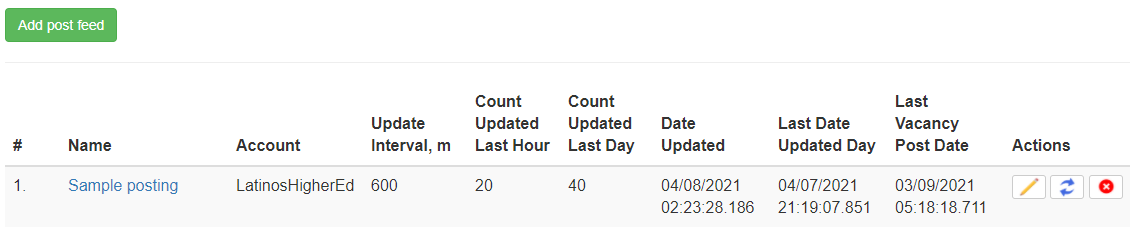
– Click ADD POST FEED to add new Twitter post template.
– Click on existing template name to edit it.
Example: sample post feed template:
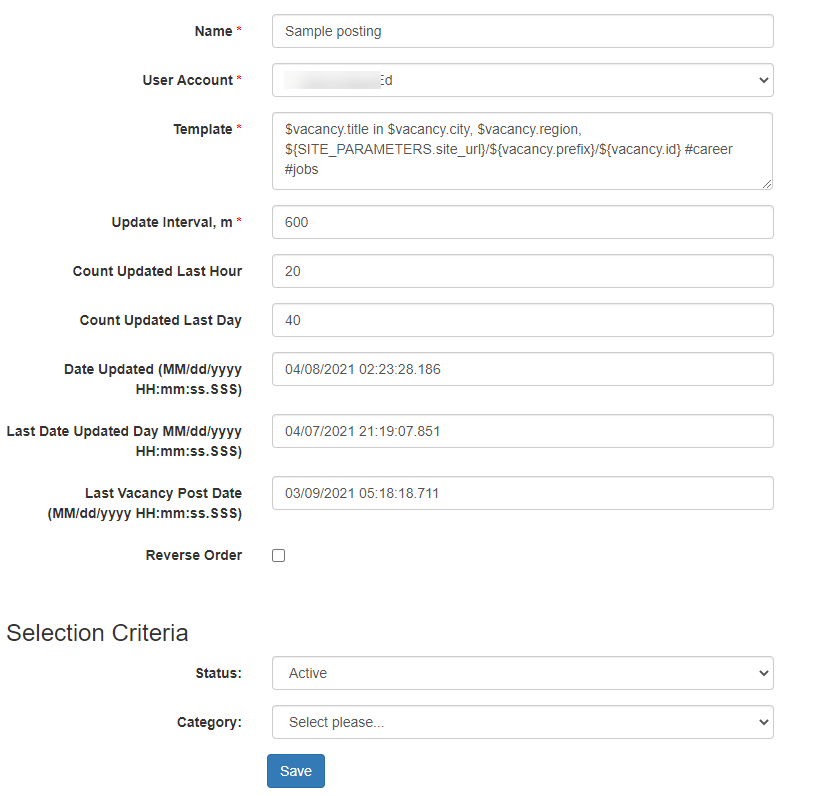
Name:
Any recognizable name
User account:
Twitter account name to post to (list is based on Twitter Accounts configured – see above).
Template:
Controls Twitter post content: vacancy fields used and hashtags.
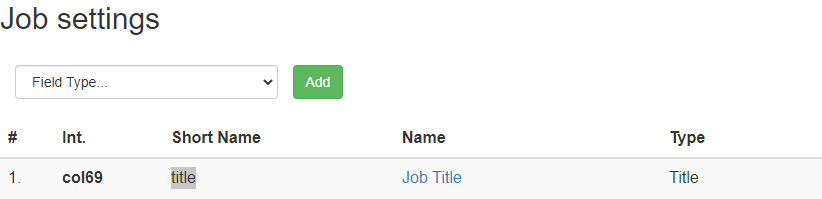
Refer to Settings: Forms & search: Job: Job settings in admin for job field shortnames (more info here).
Field shortname is added to $vacancy variable to identify job field required:
i.e. $vacancy.title is based on Job Title field from job settings:
Supply popular hashtags used by job seekers to search for job postings on Twitter:
#job, #jobs, #careers, #hiring, etc.
Update interval, m
System will select live jobs posted to your job board software within interval specified as per Selection criteria below. When there are too many jobs Twitter would usually limit number of posts and then block posting of new messages for some time. That is why Post to Twitter feature automatically splits job posts into parts and in such a way avoids being blocked.
Each of the job selected will be posted as a unique Twitter post.
Time interval is specified in minutes.
- Default number of jobs selected and posted to Twitter in a single posting request is 20 (can be changed in Hour Post Limit field).
- Default time interval is 600 minutes (can be changed in Update interval, m field). i.e. the tool will post 20 selected job postings to Twitter every 10 hours.
Hour Post Limit
Specify the number of jobs to be posted to Twitter in a single post request. Default is set to 20.
Selection criteria (default settings):
1. Status:
Active by default. Selects only live jobs.
2. Category:
Selects jobs from a specific category.
To add more selection criteria for jobs filtering, please contact your job board account manager.
New addition:
To add more visibility to upgraded job postings on your job board (i.e. FEATURED and PREMIUM jobs), you can have this tool select ONLY these types of jobs for posting to Twitter. If you want to enable this, please contact your job board account manager.