
Contents1. Overall form configuration |
Overall form configuration
1. In job board admin navigate to:
Settings: Forms & search: Job: Job settings
2. System will open the list of currently configured fields for the job posting form:

3. Edit the form by:
– Adding new fields (review Field types).
– Editing existing fields (change Fields properties).
– Changing field sequence (Changing field sequence in forms).
4. Adding a new field & editing existing ones:
I.e. Job Title field properties update.
4.1. Click on field name to open it for editing:

4.2. Supply fields properties and press the SAVE button.
5. If you created a new field, the system will reload and add it at the bottom of the form.
6. Drag & drop the field to update its position (more info: changing field sequence in forms)
7. Your job posting form is edited and you can continue using the job board software for your business development.
Notes
- Don’t change existing fields’ Short Name as it may cause negative impact to job board’s functionality. Edit only the Name field if it’s needed.
- When creating a new field, make sure the Short Name is unique within this particular form.
Jobs manager columns editing
Logged in employers can use the Jobs manager tool to publish jobs, view statistics, edit jobs, etc.
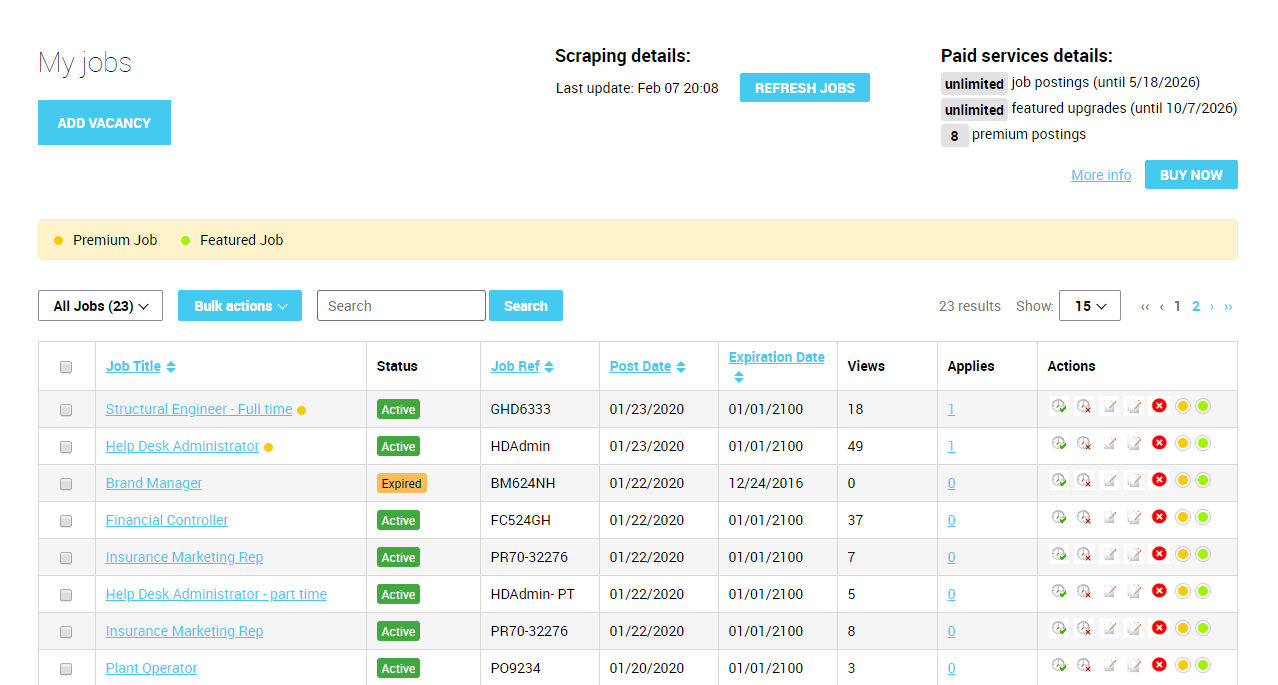
To change columns shown in the Jobs Manager:
1. Navigate job board software admin
Settings: Forms & search: Job: Job settings
2. Click on the field you want to show/hide and supply relevant field properties
3. Tick the checkbox Show as Column on My Jobs Results Page to show/hide the field in Jobs Manager

Notes
- The columns Job Title, Status, Job Ref, Post Date, Expiration Date, View, Applies, Actions are present in the Jobs Manager by default.
Screening questions specific fields
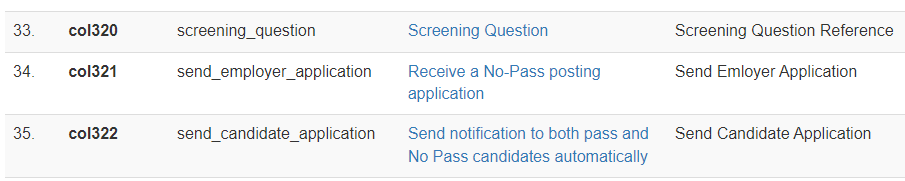
- Screening Question: this is the specific questionnaire the employer wants to include in the job posting. It’s a dropdown menu where the employer chooses which screening question to use for that particular job posting. Please note that only one screening question can be associated with a job posting, even if the employer created multiple questions.
- Receive a No-Pass posting application: this is a checkbox option. If selected, the employer will receive job applications from candidates who did not pass the questionnaire associated with the job posting.
- Send notification to both Pass and No Pass candidates automatically: this is another checkbox option. If checked, the system will automatically send emails to both candidates who passed and those who didn’t pass the screening question. The email content will be pre-filled based on the screening questions set up (more information on Pass and No Pass emails can be found here)
Notes
- The specific fields for screening questions is deactivated by default.
- If the employer hasn’t created any screening questions, the job posting form will display the following text instead of the Screening Question usual dropdown selection.
