
Contents1. Adding logo |
Adding logo
1. Navigate job board application’s admin section to open Logo section:
Settings: Appearance: Logo
2. Update logo image via following editing screen:
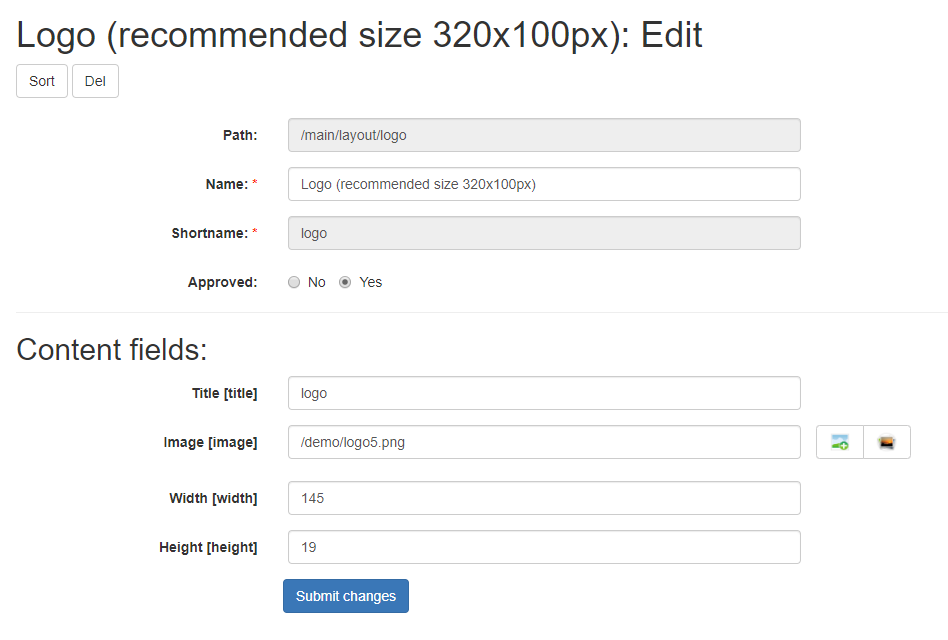
Update fields as required:
2.1. Title
Supply alternative text.

2.2. Image
Logo file URL. Browse for new logo:  icon.
icon.
Learn more on image files selection & upload: Upload new image.
2.3. Width & height
Supply maximum allowed Width & Height of visual within layout. Make sure your logo file has exact size or less than both dimension limitations. Otherwise, system will automatically shrink logo that exceeds limits set.
i.e. If logo file is 500px width, it will be reduced automatically to 350px as per limit set. Constraint proportions.
It is recommended to upload logo in same dimensions as it should show up on the job board application front-end because some browsers do coarse resize.
3. Click  button to save.
Adding a favicon
Favicon is a website icon, displayed in a browser tab and used by web browsers to show a graphical representation of your site. Usually these icons are 16×16 pixels (sometimes 18×18 or even 32×32). If you don’t have your own favicon to represent your job board, there are various 3rd party services that allow you to generate (create) these from your logos or other images.
In order to add a favicon, navigate in admin to
Settings: Appearance: Favicon
Click “Choose file” to select a favicon from your computer and upload it to the site. Click Submit Changes.
The following file types are allowed: .jpg, .png, .ico
Please note it could take several hours for cache to clear and for the favicon to be displayed in the browser tabs.
Creating transparent logo to fit background
Problem
Your logo has a background color different from the background of a job board template

Solution
Remove logo background color and save as transparent .gif file:
1. Either open your logo in vector format (AI, EPS, etc.) or select existing background color and delete it.
Photoshop screenshot: logo with no background

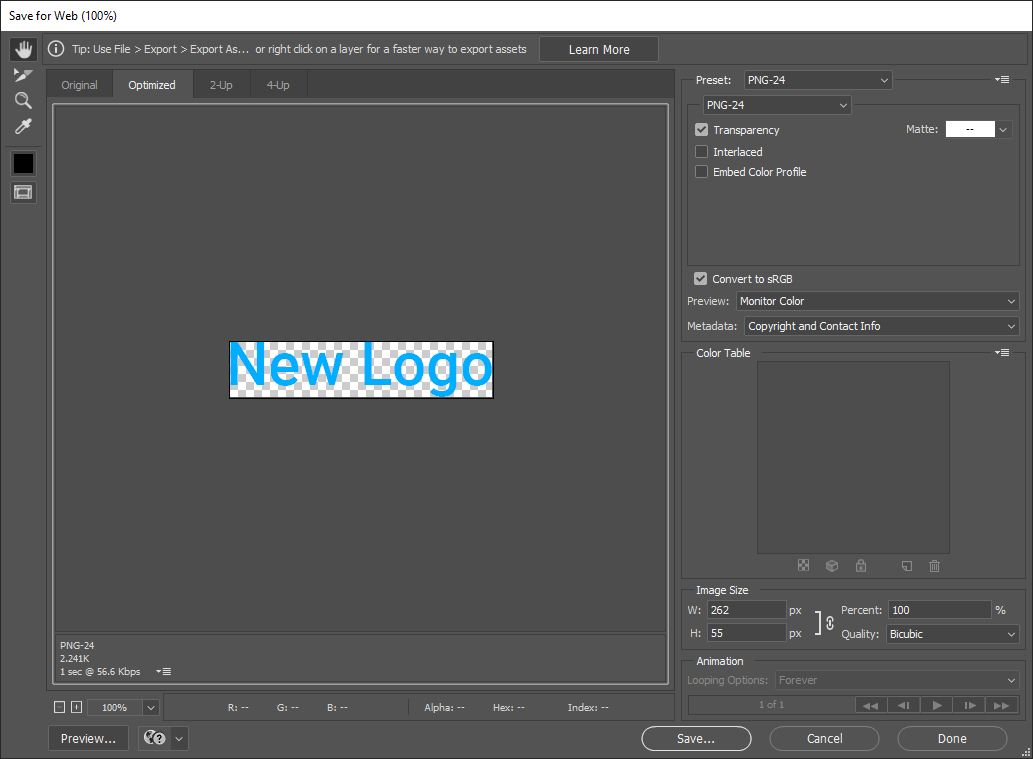
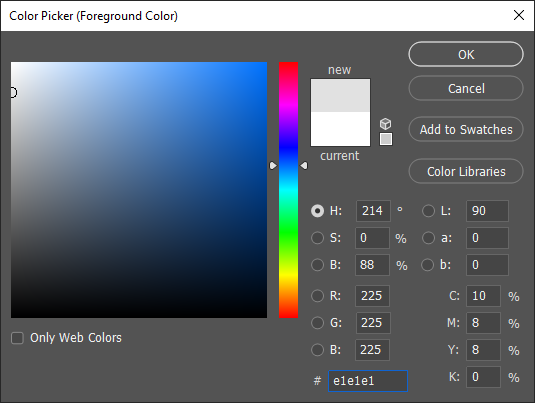
2. Save the file as transparent .gif and specify background color f4f4f4 as matte setting:
Photoshop screenshot: Save for Web & Devices: settings
3. Upload new logo to job board software Admin.
Follow instructions on logo update: Changing logo
NOTE: There are various free online graphical editors that can help make any logo’s background transparent.