
Payment products and paid items overview
All of your website products & services are offered as Payment packages. Payment packages contain single or multiple paid items (i.e. 5 job postings, 1 month of resume search, etc.). Each payment package has a name, paid items, price, currency and a region.
Features:
– Differentiate pricing by geo regions and currencies.
– Price job postings by:
- Number of job postings per specific period of time
- Unlimited job postings for a period of time
– Price resume search by:
- Limited period of time resume search can be accessed
- Unlimited resume search for a specific period of time
- Limit number of resume views per period of time
– Create services activation coupons (discount codes) for discounted offers / mailers
– Obtain payments via credit cards / payment gateways or generate an offline invoice
– Activate services & track history via admin
– Email notifications upon service purchase
– Configurable reporting for payments tracking
Payment packages are linked to both regions and currencies.
Region configuration
Configure regions so you can offer region-specific currency, packages and pricing.
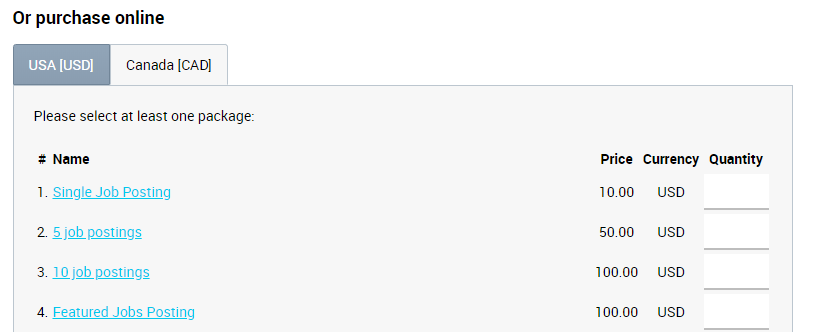
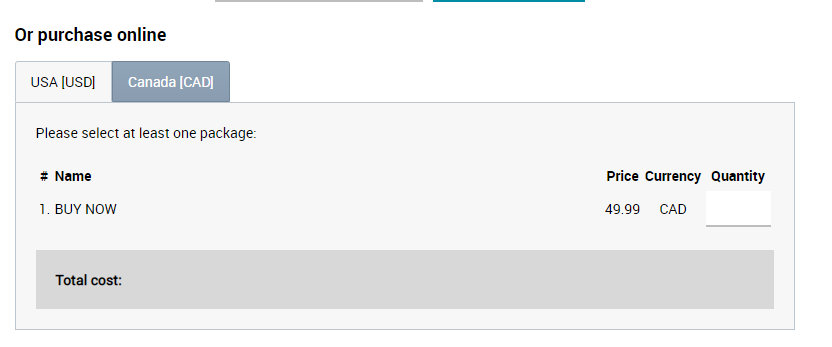
Employer, Purchase Products page screenshot: regions and currencies choice.
1. Navigate admin section of the job board software.
Settings: Payments: Regions
2. Update default regions offered:
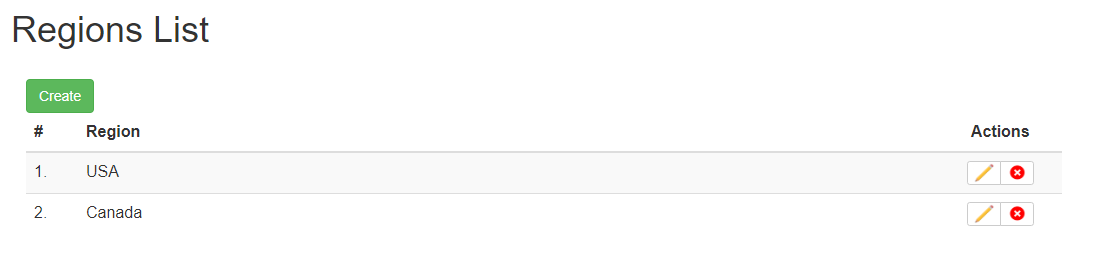
– add new region
– delete region
– edit name of the region
Please note:
- At least one region is required for you to be able to configure pricing.
- Each region can include its own set of payment products which have to be created in admin (more info below).
Currency configuration
Set up one or multiple currencies to price your services and charge for them.
1. Navigate job board admin section.
Settings: Payments: Currencies
2. Update default currencies offered:
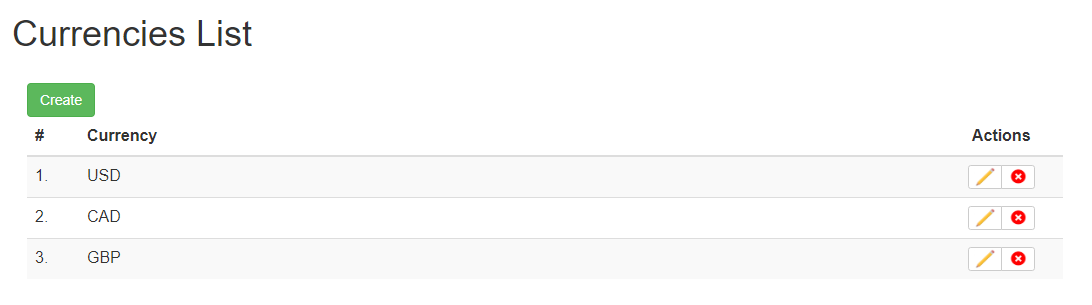
– add new currency
– delete currency
– edit name of the currency
Please note:
- At least one currency is required for you to be able to configure pricing.
- When adding a new currency, make sure you use the official currency abbreviation (EUR, USD, CAD, AUD, etc.) and official currency symbol (£, $, etc.)
- If you want to have the same payment product (package) available in different currencies for different regions, create identical payment packages and assign its individual currency and/or region to each of them.
Employer paid items overview
1. Paid items examples:
- 5 jobs
- 6 months of resume search
- unlimited job postings for 1 year
- featured job posting
- banner advertisement on homepage, etc.
2. Enlist all products & services:
Paid items enlist all single or multiple products & services offered by your website. Paid items have a period of usage allocated. They can be a single or unlimited use items within a specific period of time.
3. Paid items form payment products (packages) and have no price.
Payment packages are formed based on single or multiple paid items and are priced accordingly. Each payment product (package) may contain 1 or more paid items that will be activated automatically upon purchase.
4. Single or unlimited paid items
To create one-shot or unlimited paid items tick or un-tick Single action checkbox respectively.
Employer paid items editing
1. Navigate job board software admin
Settings: Payments: Employer paid items
2. Update paid items:

– add new
– delete
– edit properties
3. Edit properties or create new paid item:

Employer paid items fields meaning:
Name: brief description of the service offered under paid item.
Paid Item Type: following types of employer paid items are offered in standard JobMount template:
- Job posting: Standard job posting item (can be limited if Single Action checkbox ticked, or unlimited for a specific period of time if Single Action checkbox is unticked)
- Banner advertising: Homepage, job seeker or employer advertising slots for banner placements
- Featured job slot: Featured upgrade slot for a standard job (requires at least 1 live standard job posting to upgrade)
- Resume search: Resume search will offer full job seeker profile access for a period of time
- Resume search, hidden contacts: Resume search will not show hidden job seeker details.
- Premium job post: Premium job posting item (premium jobs do not require any accompanying items and can be used autonomously; premium jobs are always displayed at the top of job search results, highlighted in a different color)
- XML feed job post: Used to post jobs via XML (bulk job postings API, postings via spider software)
Paid Item Period Type: the type of period paid item can be activated for.
Paid Item Period: number of periods paid item will be activated for (is used in combination with Paid Item Period Type, i.e. 1 year, 3 months, etc.)
Paid Item Quantity: quantity of items, i.e. 30 job postings.
Single Action: unchecked for unlimited number of actions (i.e. unlimited job postings).
Active Period (days): is used for job postings only. Indicates the period before automatic expiry of a job after posting.
Limit number of resumes viewed by any employer during searches via Site Parameters: Resume search limits (Global website properties editing).
Employer payment products (packages) editing
All of your website products & services are offered as Payment products (packages). Payment packages can contain single or multiple paid items (i.e. 5 job postings, 1 month of resume search, etc.). Each payment product (package) has a name, paid items, price, currency and a region.
Examples of packages
- Singe job
- 5 jobs
- 1 week of Resume database access
- 10 jobs plus Featured job upgrade
- Unlimited jobs plus Resume database access for 1 month
- 1 month of resume database access plus Banner advertising
1. Configure paid items (Employer paid items editing)
2. Navigate job board software Admin
Settings: Payments: Employer packages
3. Choose region to create payment packages for:

Update payment packages:
– add new
– delete
– edit properties
– sort by drag&drop (Changing field sequence in forms)
4. Adding new payment package
4.1. Add new payment package by hitting create button.
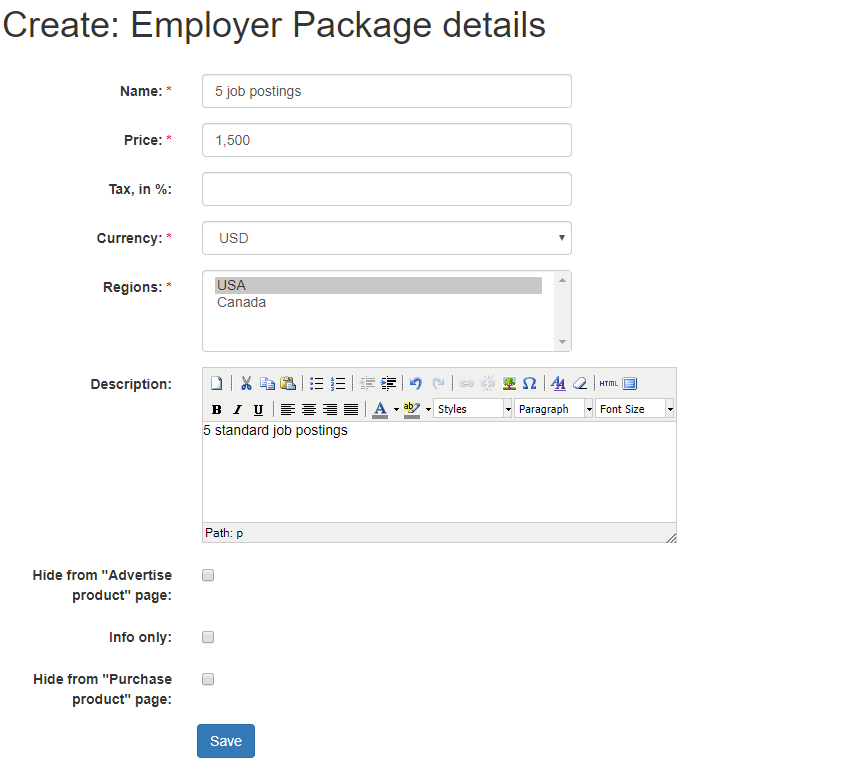
Fill out the name, price, currency, regions to show package for and brief description (if needed).
The price must include a digit more than 0. If you need to create a payment product (package) for testing purposes, set the price to 0.1
- Hide from “Advertise product” page – hide from advertising page only, still available for purchase to employers;
- Info only – information package (includes name, button text and link fields) – required for packages that you don’t want to sell directly via the job board, and can include email address or phone number for contact instead;
- Tick the Hide from “Purchase product” page checkbox for packages still being configured or the ones created for Promo Coupons activation only and this package will not listed on the buy products page to logged in employers. After you’re done with the product (package) configuration, don’t forget to untick this checkbox so employers are able to purchase it.
Paid items will not be initially shown. Save payment product (package) and return to editing in order to add Paid items.
Save the package details.
4.2. Choose the newly created package and hit Edit to allocate paid items for it.

Automatic services activation upon registration
Activate specific or unlimited number of job postings or resume search for all newly registered users, i.e. free job posting for employers.
Job board software will automatically activate payment products (packages) chosen as Default ones upon employer or candidate registration on the site.
You can activate both hidden payment packages or the ones available for purchase on the site:
1. Navigate admin section of your job board software:
Settings: Forms & search: Employer: Employer profile
or
Settings: Forms & search: Candidate: Candidate profile
2. Find the field called “Default Payment Package” in the list of pre-configured fields. Edit Default Payment Package by selecting Payment Product(s) (packages) enlisted in Default Value multiple-choice dropdown (hold CTRL button to select several items):

3. Save changes.
Note
- To deactivate product (package) giveaway on registration hold CTRL button and unselect the product(s). Then save changes.
Free job posting for employers
Allow your newly registered employers post jobs for free.
Steps to follow
1. Create a Paid Item via job board software Admin for unlimited (or limited by desired number, i.e. 200 jobs) job postings for a specific period (i.e. 1 year).
More info:
2. Create a hidden Payment Product (package) which contains this unlimited job posting Paid Item.
More info:
3. Activate this Payment Package to be immediately available to all employers upon registration.
More info:
Hidden payment products (packages)
2 types of payment products can be configured via job board software admin:
– Offered on front end / available for purchase.
– Hidden (created for admin or coupon activation only).
Manage your packages availability:
1. Navigate admin
Settings: Payments: Employer packages or Candidate packages
2. Open payment package to edit:  .
.
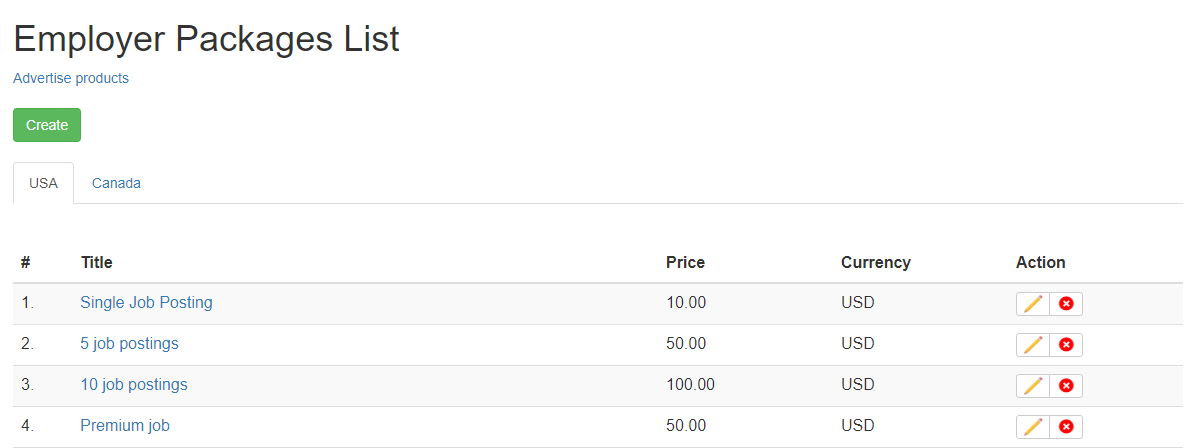
3. Check or uncheck Hide from “Advertise product page” setting (hide from advertising page only, still available for purchase to employers) and/or Hide from “Purchase product” page setting (remove from purchase page for employers):
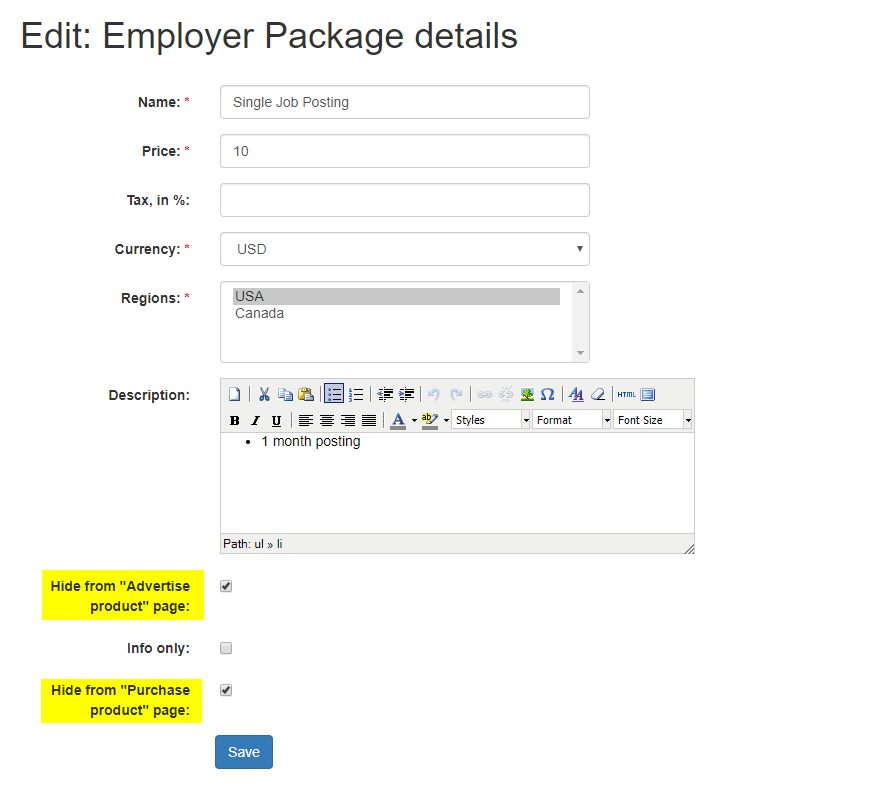
4. Save changes.
Automatic client services activation via coupons
Information about coupons/discount codes usage can be viewed here.
Email notification upon payment
Following email notification is sent to Employer upon successful purchase:
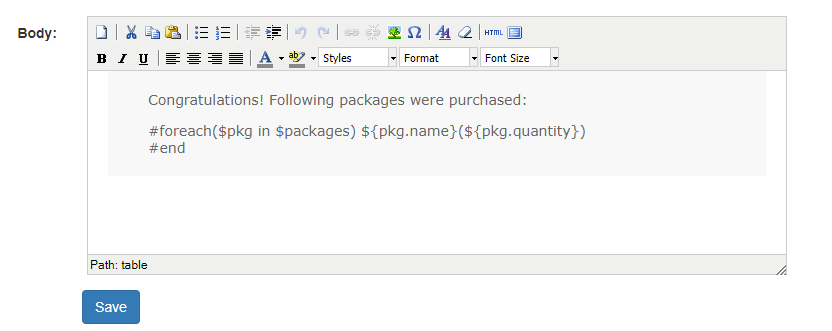
Configure notification template content & recipients in admin section of job board software.
Navigate job board Admin:
Settings: Email notifications: Email Templates: Employer. Package purchased.
Contact your JobMount job board account manager for assistance in configuring this email template.
Payment statistics and reports
1. Configurable reports
Navigate job board software admin
Reports
Configurable reports section offers following reports for payments tracking:
- Income by package per period
- Income for a period
- Sales report
2. Employer-specific reports
Each employer’s active paid items, services activation & payment history data is available in the bottom of each account profile:
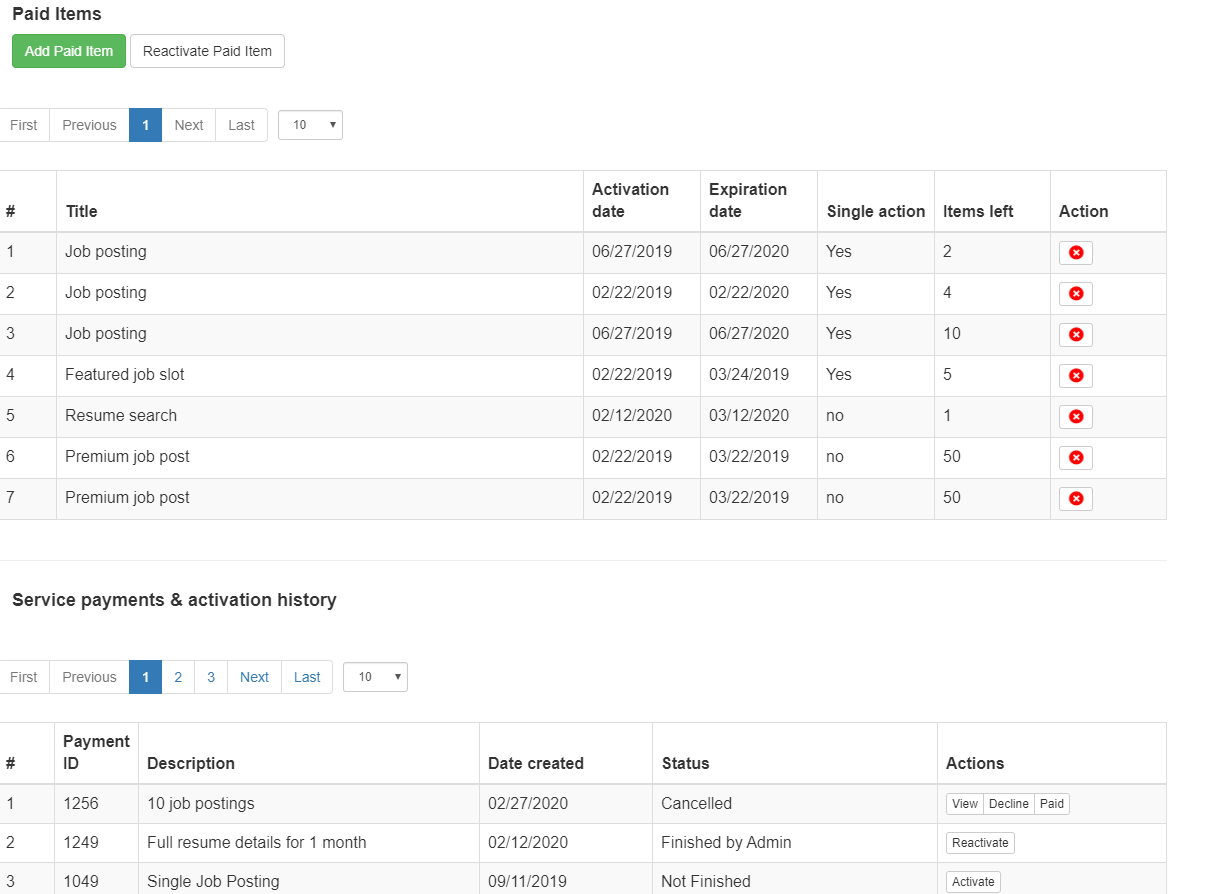
The same goes for candidates’ paid items, services activation & payment history data.
Employers/candidates can access their payment history data too via their personal profiles on the site by navigating to “Purchased items” section of the dashboard.
Pay per application pricing configuration
Employer: applications viewing process example
1. Employer reviews list of jobs and views/applications statistics:
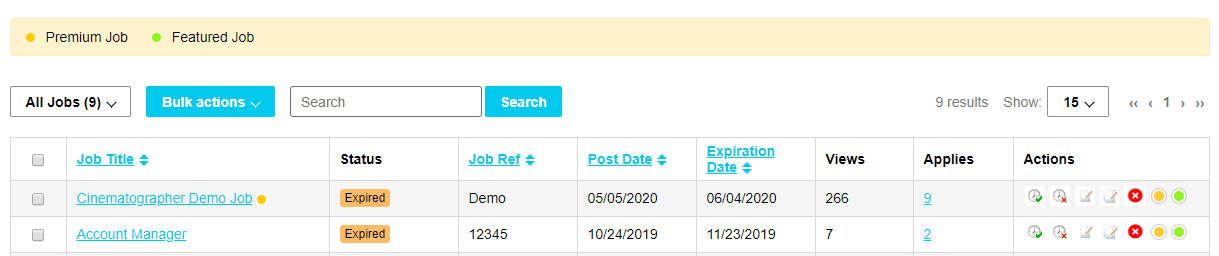
2. Employer clicks on the Applies link to review applicants’ details:
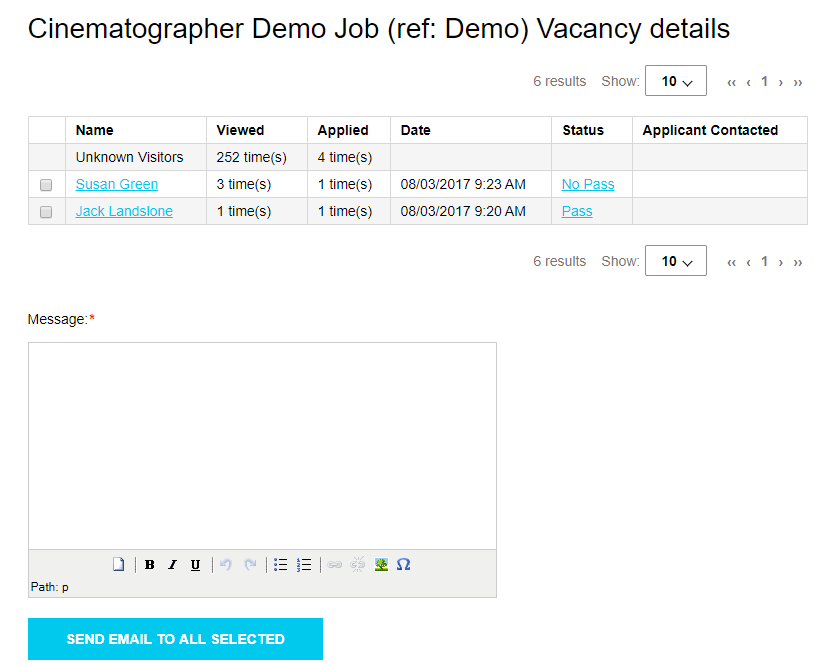
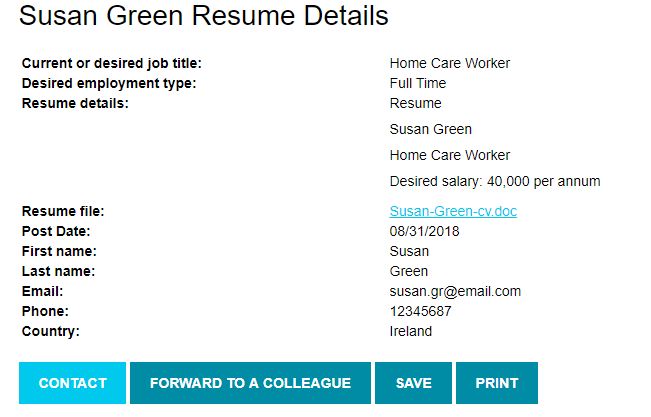
3. Job board software system will open full details of an applicant only if Full resume details paid item is activated for / purchased by employer. Otherwise, access to the applicant’s resume will be either restricted or limited.
Full application view example: both profile & resume file attached
Limited view example: contact details & resume file are hidden
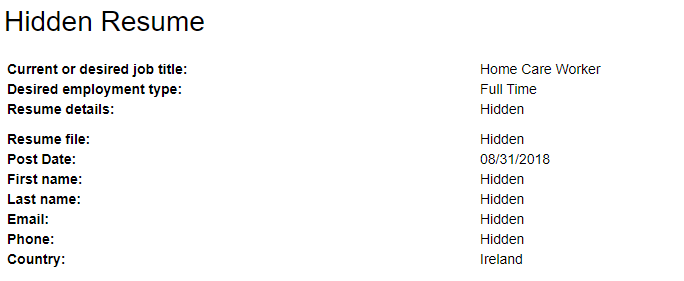
With limited resume access (pay per application model) the employer needs to buy a resume product (package) with limited resume views. Opening a candidate’s resume via resume search or jobs manager’s applications list will require the employer to use 1 resume view. Opening every new resume will require 1 additional resume view item.
With limited resume access (pay per application model) every candidate’s contact and personal information will be hidden by default unless opened by employer with a resume view paid item.
Fields that should be hidden on candidate resumes can easily be customized in admin. To do so, navigate in admin to
Settings: Forms & search: Resume: Resume profile
- Find the field called “Anonymous” and click on its name to edit properties;
- In the “Fields” section select fields which should be hidden from employers unless paid for (hold CTRL + click to select multiple fields); all personal data (i.e first and last name, email, phone and resume file) is hidden by default;
- Click SAVE at the bottom for changes to take effect.
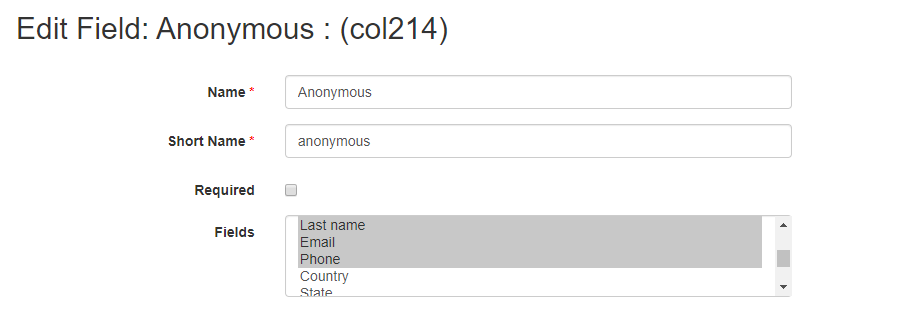
Activating Pay Per Application View pricing model via admin
1. Navigate job board software admin
Settings: General parameters
2. Update following site properties:

Application view is controlled by full resume details paid item:
Yes option
Will only allow full (or limited) applicant details viewing for employers with full (or limited) resume details paid item active/purchased.
No option
Will provide full access to applicant details to all employers (including the ones with no resume views purchased).
3. Create limited resume details paid item and hidden Payment Package. Activate this Payment Package for all Employers upon registration. How to: Hide candidate contacts but show profile info.
This will enable limited applicant’s details viewing for Employers.
4. Create full resume details-based paid items and create Payment packages to purchase for application/resume viewing. Either per view or unlimited viewing per period options are available. How to: Employer paid items editing, Employer payment packages editing.
This will enable full applicant’s details viewing for Employers who purchased resume viewing packages.