
Contents1. Overview |
Overview
1. Navigate job board admin:
Settings: Forms & search: Employer: Employer Profile
2. System will open a list of fields which are currently configured for your employer registration form in your job board application:

3. Edit the form by:
– Adding new fields (review Field types).
– Editing existing fields (change Fields properties).
– Changing field sequence (Changing field sequence in forms).
4. Adding a new field & editing existing ones:
I.e. Phone field properties update.
4.1. Click on the field’s name to open it for editing:

4.2. Fill in fields properties and press the SAVE button.
4.3. The job board application will save changes and show them on your site straight away.
5. If you created a new field, the system will reload and add it at the bottom of the form.
6. Drag & drop the field to update its position (more info: changing field sequence in forms)
Notes
- Don’t change existing fields’ Short Name as it may cause negative impact to job board’s functionality. Edit only the Name field if it’s needed.
- When creating a new field, make sure the Short Name is unique within this particular form.
Sub account fields
Master account employers can customize sub accounts exactly the way they want and manage their permissions.
Permissions Control
To oversee the privileges of sub accounts, the main employer must specify the actions they wish to permit for their sub accounts during the creation or editing process.
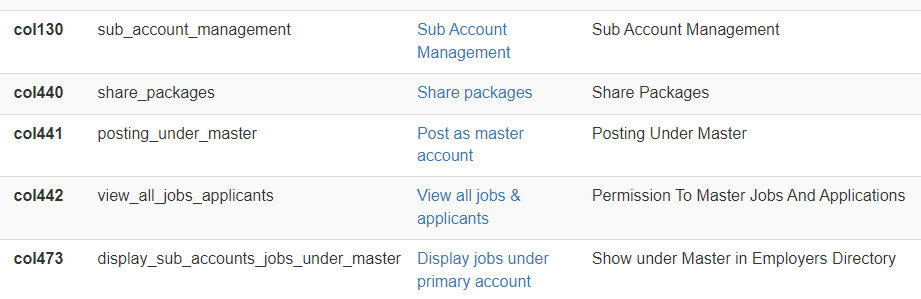
There are 5 default options available for selection, which are as follows:
- Sub account management: when enabled, it grants the sub account the ability to create and manage other sub accounts;
- Share packages: when enabled, it grants permission to access payment products associated with the master account and utilize their active services;
- Post as master account: when enabled, it authorizes the sub account to post job listings under the name and logo of the master account’s company;
- View all jobs & applicants: when enabled, it allows the sub account to review all job postings and applications from both the master account and other sub accounts;
- Display jobs under primary account: when enabled, it conceals the sub account on the Employer’s Directory page and showcases their active job listings under the master employer’s account instead.
Employer-specific fields
- Default payment package: select the default payment products that should be automatically activated by the system upon employer registration (more info here)
- Anonymous: conceal specific employer details, such as the company name and/or logo, from unregistered users viewing job postings (more info on specific data fields here)
