Contents1. Resume form editing and configuration |
Resume form editing and configuration
Steps to follow:
1. Navigate in admin section of your job board software:
Settings: Forms & search: Resume: Resume profile
2. System will open a list of fields which are currently configured for the resume form in your job board application:

3. Edit the form by:
– Adding new fields (review Field types).
– Editing existing fields (change Fields properties).
– Changing field sequence (Changing field sequence in forms).
4. Adding a new field & editing existing ones:
I.e. First name field properties update.
4.1. Click on the field name to open it for editing:

4.2. Supply or update fields properties.
4.3. Save changes.
5. If you created a new field, the system will reload and add it at the bottom of the form.
6. Drag & drop the field to update its position (more info: changing field sequence in forms)
Notes
- Don’t change existing fields’ Short Name as it may cause negative impact to job board’s functionality. Edit only the Name field if needed.
- When creating a new field, make sure the Short Name is unique within this particular form.
Adding a video field to the job seeker’s resume form
Provide your job seekers with the ability to submit a video resume via an embed tag supplied by video hosting services (i.e. YouTube):

Follow these steps to allow embedding of a Youtube (or other) video to the job seeker’s resume in JobMount job board software:
1. Navigate in admin to
Settings: Forms & search: Resume: Resume profile
2. In the Field Type… at the top, select Textarea and click ADD (See more: field types)

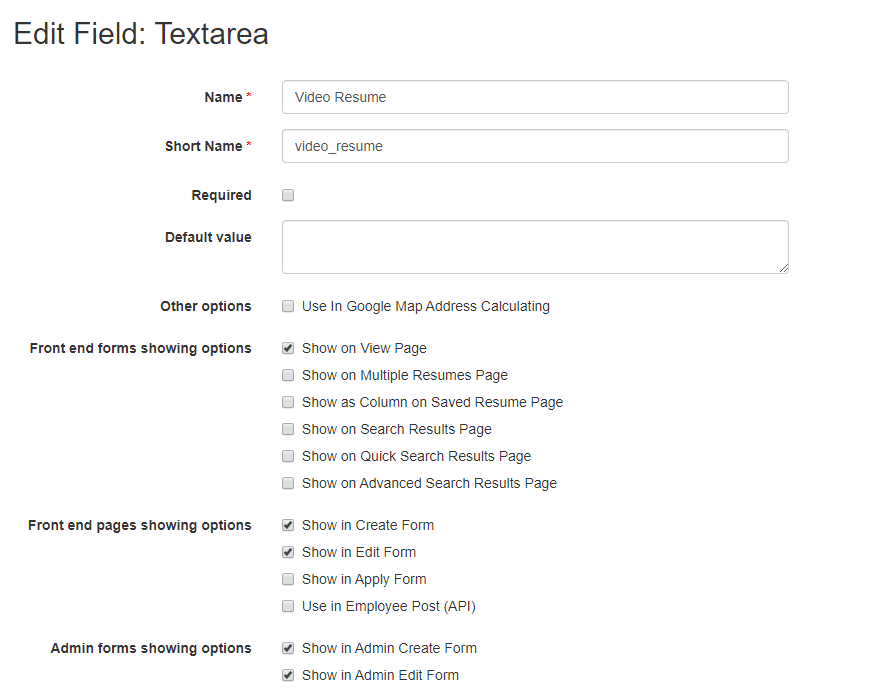
3. Now job seekers are able to insert a Youtube (or other) video by copying the HTML embed code from the video hosting service:

and add it into the newly created TEXTAREA video resume field:
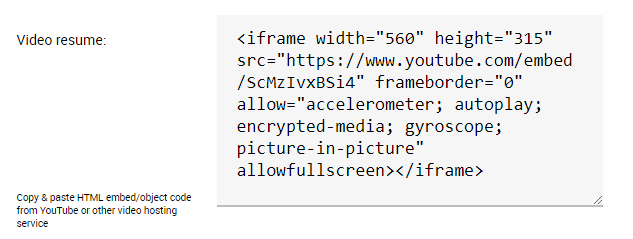
Note: Make sure to provide a hint text for this field, so job seekers understand what to do. You can see a possible example in the screenshot above.
Resume “upload file” field types configuration
1. Navigate in job board software admin to
Settings: Forms & search: Resume: Resume profile
2. System will open a list of fields currently configured for the resume form.
Open Resume file field configured by default or (if removed/missing) Add new field with the Type: Applied file.
i.e.

3. Supply resume file field properties

File type fields:
- System will accept all of the extensions enlisted: doc,docx,rtf,txt,pdf.
- Note the maximum allowed size of the uploaded file (in kilobytes)
- System will automatically parse text content from files uploaded and link to Candidate profile.
- For any other fields that require file upload (e.g. cover letter, recommendation letter, photo, etc.) – please use the File field type. Applied File type can be used only for the actual Resume file field for parsing purposes.

4. Save changes to make them active.
Special resume fields
In the resume settings, there are several important fields that are specifically related to resumes. These fields include:
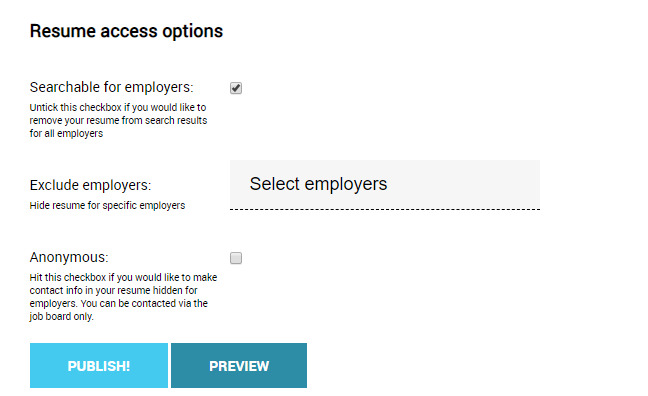
- Searchable for employers: this option is enabled by default. Job seekers can uncheck the box to exclude their resume from search results for all employers. If they later decide to make their resume searchable again, they can simply re-check the box. This is useful for job seekers who are not currently seeking employment and prefer not to receive job offers;
- Exclude employers: this feature allows job seekers to hide their resumes from specific employers. They can use the search function to find and select companies they want to hide their resume from. If the chosen company exists in your job board database, the system will allow them to select it and hide their resume.
- Anonymous: when this option is checked, the system hides certain fields on the job seeker’s resume from employers. The default hidden fields include personal information (such as name, phone number, and email) and file uploads (such as the resume file, cover letter, and photo). The job board administrator can easily configure which fields to hide or reveal.